Getting started
You get into Ordify at app.ordify.ai. Sign up if you need an account, or sign in if you already have one. Both use the same four options.
Create an account
- Go to app.ordify.ai/signup.
- Choose Email address, Continue with Google, Continue with Microsoft, or Continue with SSO. See Ways to continue if you are unsure which to use.
- If you use Email address, click Continue, then set your password and name.
- Keep the I agree to the Terms of Service and Privacy Policy checkbox selected. You cannot continue without it.
- You land on chat — that first screen is below.
Sign in later
- Go to app.ordify.ai/login.
- Use the same option you used to create the account.
- If you use Email address, click Continue, then enter your password.
After you sign in
This is the first screen you see. Type a request, or pick a starting point under the box.
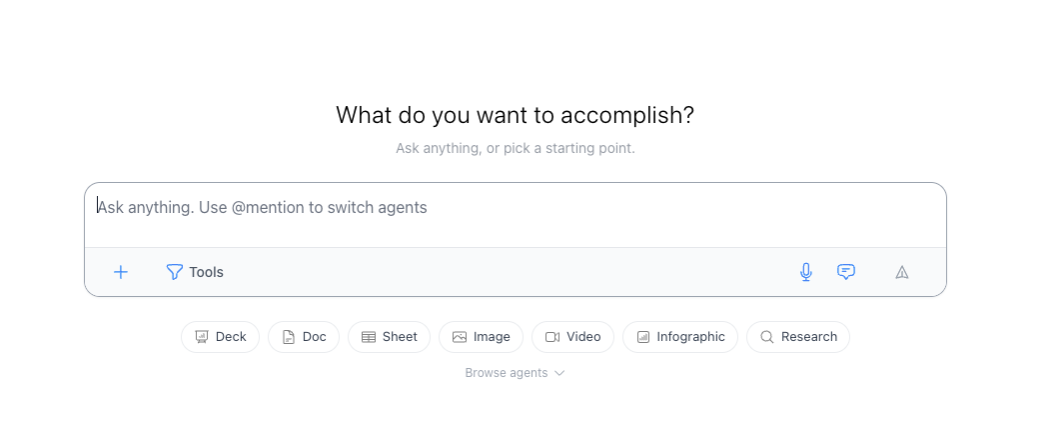
- Deck — a slide deck you can export to PowerPoint. See Decks.
- Doc — a written document as a
.docxfile. See Word and documents. - Sheet — a spreadsheet as an
.xlsxfile. See Excel and spreadsheets. - Image — a generated image from a description. See Image generation and editing.
- Video — a short video from a description or an image you already have. See Generating videos.
- Infographic — a visual one-pager you can view and export. See HTML reports.
- Research — a sourced report from the web. See HTML reports.
You do not have to pick one. Type anything in the box, or use @mention to switch agents. More on that in Chat basics.
Invite your team
If you are an organization admin, add people next. Open the Account menu and select Organization. The General tab lists everyone in the organization.
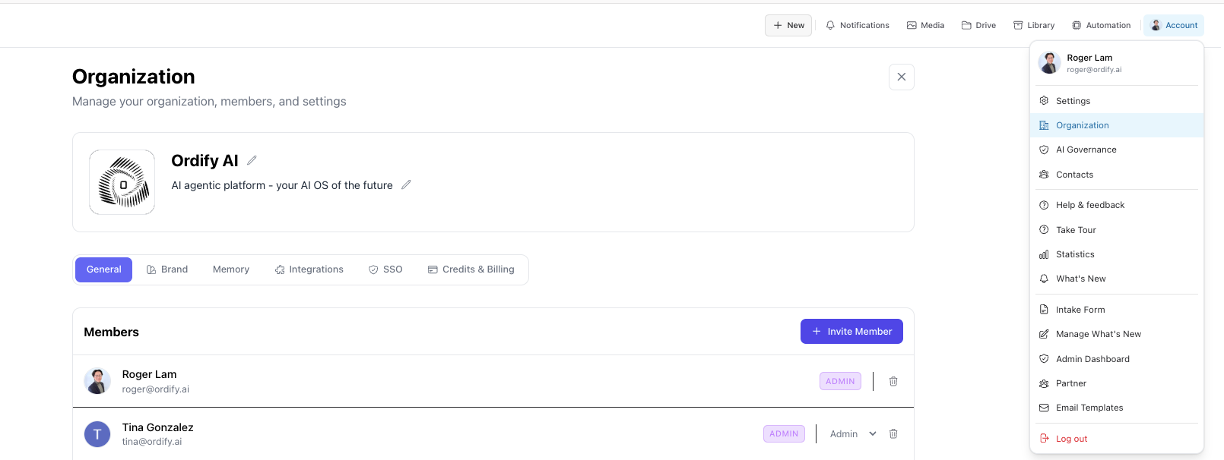
Invite a member
- Open Account → Organization.
- Click Invite Member.
- Enter their Email Address.
- Choose a Role: Member for everyday use, or Admin if they should manage the organization.
- Click Send Invite.
They get an email and can sign in at app.ordify.ai. If they already have an Ordify account, they are added to the organization.
Change someone's role
On the same Members list, use the role menu next to a person to switch them between Member and Admin. You cannot change your own role. Use the trash control to remove someone, or to leave the organization yourself.
After the team is in, set AI Governance so approved apps, content safety, and shared agents apply to everyone.
Ways to continue
Both sign-up and sign-in offer four ways to continue:
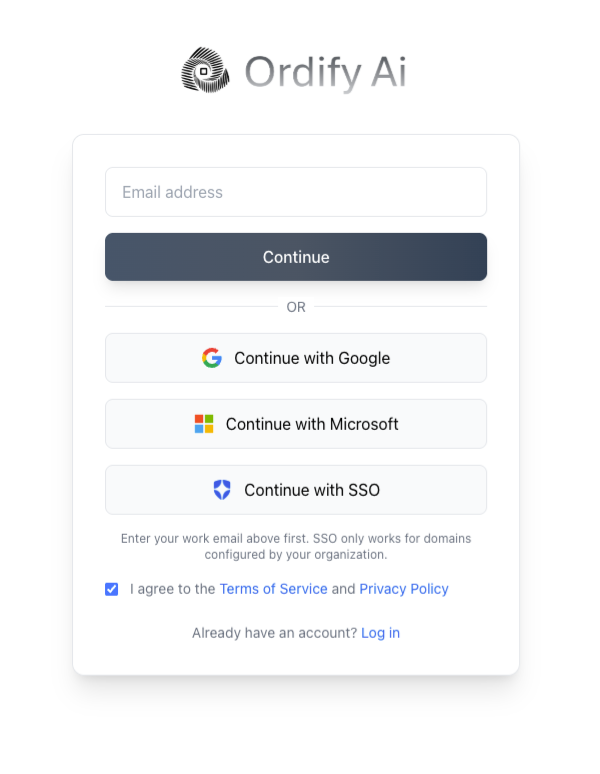
| Option | Use this when |
|---|---|
| Email address + Continue | You want an Ordify account with your email and a password. |
| Continue with Google | You sign in with a Google account. |
| Continue with Microsoft | You sign in with a Microsoft work or personal account. |
| Continue with SSO | Your company has set up single sign-on for Ordify. |
Continue with SSO needs your work email in the Email address field first. It only works for domains your organization has configured. If your company has not set that up, use email, Google, or Microsoft instead. Organization admins configure this on the SSO page.
What's next
- Onboarding tour — walk through the basics one page at a time
- AI Governance — approve apps, set content safety, and review shared agents
- Create an agent — your first working agent after you are in
- Single Sign-On (SSO) — for organization admins who need to turn SSO on for their domain