Media Library
The Media Library is your central hub for managing all images and videos you've generated or uploaded in Ordify. Organize, filter, and access your media assets for use across your AI workflows.
Overview
The Media Library lets you:
- View all generated and uploaded images and videos
- Organize media by date, project, or custom categories
- Filter and search through your media collection
- Generate new videos directly from the library
- Access media for use in chat, agents, and other Ordify features
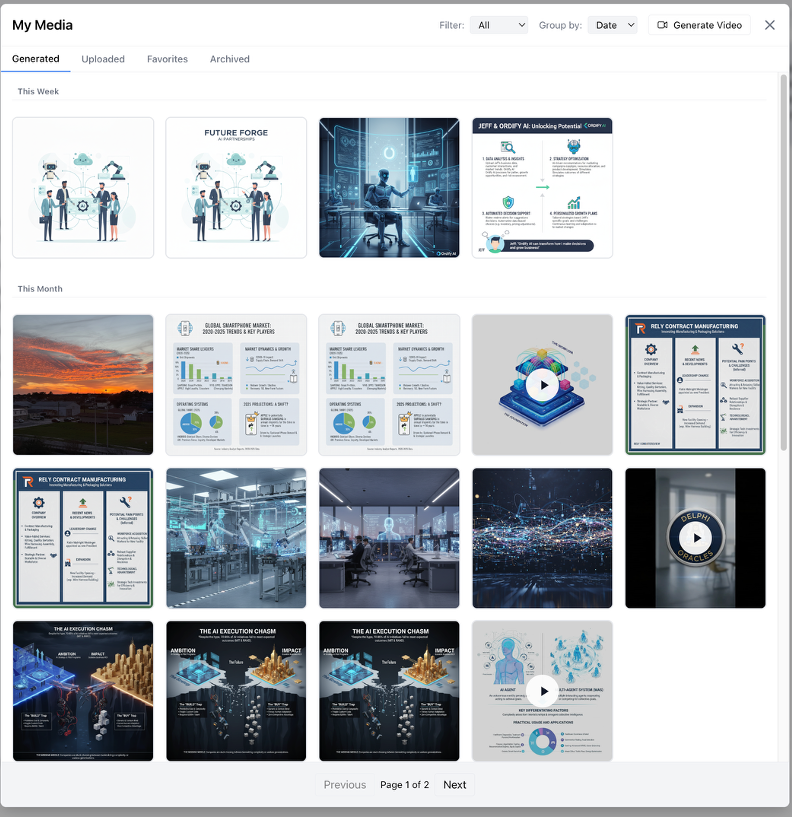
Managing your media
Content organization
The Media Library organizes content into several categories:
- Generated: All AI-generated images and videos created through Ordify
- Uploaded: Files you've manually uploaded to the library
- Favorites: Media items you've marked for quick access
- Archived: Media you've archived to keep your main library organized
Filtering and grouping
- Filter by Type: Show only images, only videos, or all media
- Group by Date: Organize media by time periods (This Week, This Month, etc.)
- Search: Find specific media items by name or description
Generating images
To generate images, see the Image generation and editing guide for detailed instructions and templates.
Quick overview:
- Use the image generation feature in Chat or through agents
- Provide a text description of the image you want to create
- Generated images are automatically saved to your Media Library
- Access them anytime from the Generated tab
Editing images with prompts
Once you've generated an image, continue to edit it using text prompts:
- Select an Image: Choose any image from your Media Library or upload one
- Edit with Prompt: Describe the changes you want
- Generate Updated Version: The AI creates a new version based on your prompt
- Save to Library: Edited versions are saved alongside the original
Editing capabilities:
- Add and remove elements
- Inpainting: edit specific areas while leaving the rest unchanged
- Style transfer: transform into different artistic styles
- Composition changes: combine elements from multiple images
- Detail preservation: maintain critical details like faces or logos
Generating videos
Generate videos directly from the Media Library or through chat:
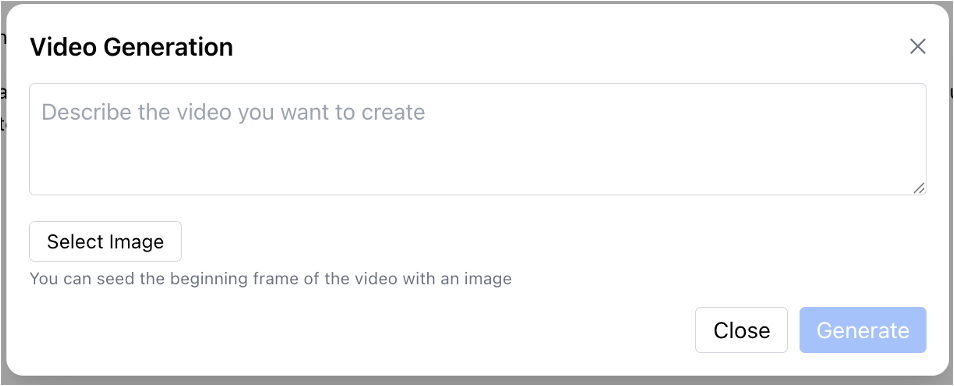
- Open Video Generation: Click Generate Video in the Media Library
- Describe Your Video: Enter a text description of the video you want to create
- Optional Image Seeding: Select an image to seed the beginning frame (influences starting style and content)
- Generate: Click Generate to create your video
Video generation features:
- Text-to-Video: Create videos from text descriptions alone
- Image Seeding: Start videos from a specific image frame for consistency
- Iterative Creation: Generate multiple versions to find the perfect result
Updating videos by description
- Select a video from your Media Library
- Describe how you want to modify it
- The AI creates a new version incorporating your changes
- Updated versions are saved for easy access
Using media in your workflows
- In Chat: Reference images and videos in conversations, or generate new media on the fly
- In Agents: Assign media to agents for context and reference
- In Jobs: Include media generation in automated workflows, use media as inputs or outputs
Best practices
- Organize regularly: Use folders and categories to keep media organized
- Use Favorites: Mark frequently used media for quick access
- Archive old content: Keep your main library clean
- Iterate with prompts: Refine media through conversational editing
- Seed videos with images: Use image seeding to maintain visual consistency across video generations