AI Governance
Instead of circulating a list of approved apps and hoping your team follows it, Ordify lets organization admins enforce application and agent-level governance in one place. You choose which apps members can connect, how content output is regulated, and which agents, jobs, and blueprints are approved for the organization — then export a policy report of the current posture.
Only organization admins can open AI Governance. Open it from the Account menu. If you are not an admin, skip this page and continue the tour.
Why use AI Governance
- Enforce, don't hope: Approved apps, content filters, and published agents apply to everyone in the organization — not just the people who read a policy.
- One hub: Apps, output safety, publishing review, and documentation live together instead of across spreadsheets and separate tools.
- See what is happening: The overview shows blocks, pending reviews, and approved integrations for the last 30 days.
- Leave with a document: Export an AI Governance Policy & Posture Report you can complete for leadership, security, or an audit.
How it works
- An organization admin opens AI Governance.
- Overview shows live metrics. The sections on the left are where you change settings.
- Content safety sets how harmful output is blocked across chat, agents, and jobs.
- Integrations & tools is the allowlist of apps members can connect.
- Publishing & review tracks agents, jobs, and blueprints waiting for admin approval.
- Documentation builds a report from the settings and metrics you already have.
Settings apply to every member of the organization. Content safety changes take effect on the next request.
Access control for departments and agent visibility is not in this hub yet. It will appear here when it ships.
Getting started
- Sign in as an organization admin.
- Invite people from Account → Organization if they are not members yet. See Invite your team.
- Open the Account menu and select AI Governance.
- If you admin more than one organization, pick the one you want at the top of the page.
- Start on Overview, then open each section on the left as you need it.
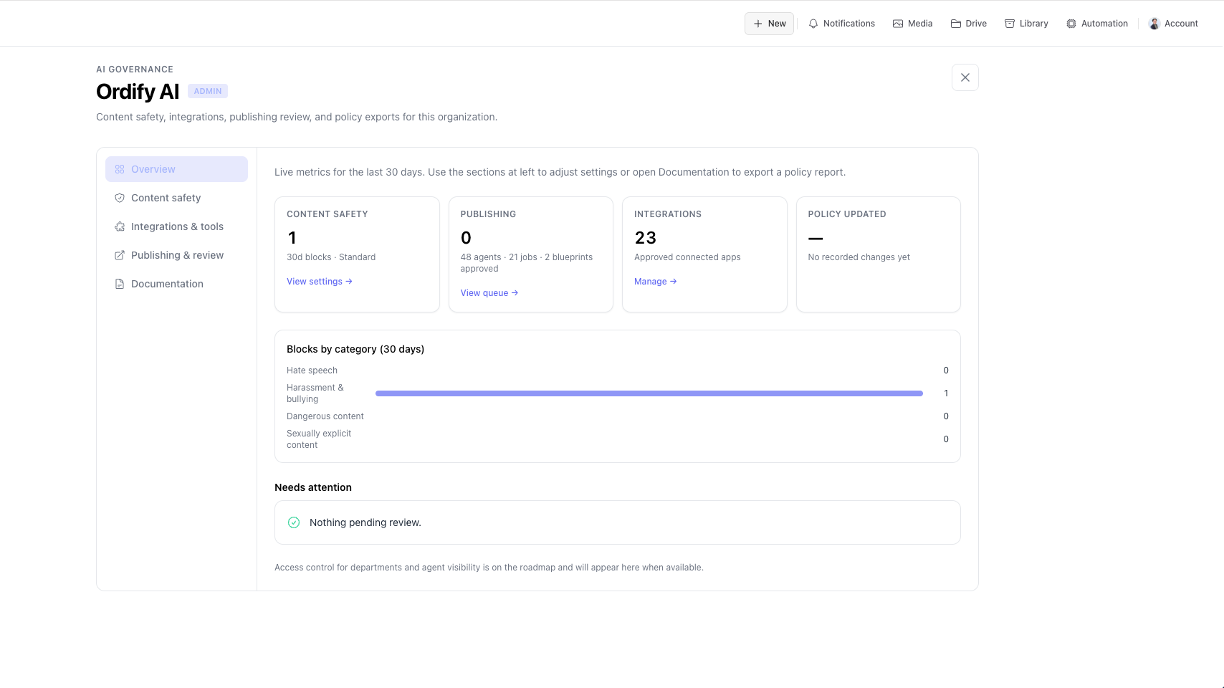
Overview shows blocks in the last 30 days, items pending review, how many apps you have approved, and when the safety policy last changed. Needs attention lists anything waiting in the review queue. Use View settings, View queue, or Manage on a card to jump to that section.
Content safety
Control how aggressively harmful content is blocked across chat, agents, and jobs. The filters cover hate speech, harassment and bullying, dangerous content, and sexually explicit content.
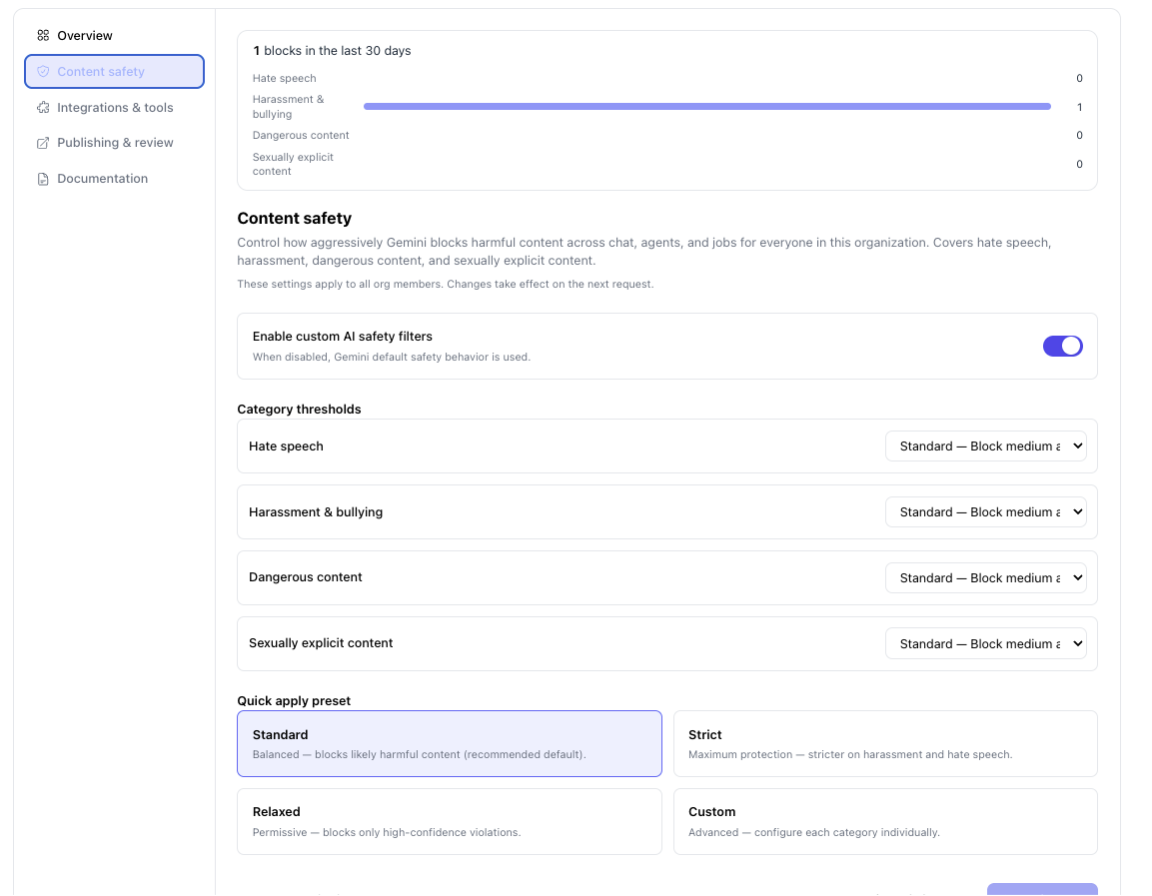
- Open Content safety.
- Keep Enable custom AI safety filters on to use your organization's thresholds. Turn it off to fall back to Gemini's default safety behavior.
- Pick a Quick apply preset, or choose Custom and set each category yourself.
- Save. The next request from anyone in the organization uses the new settings.
| Preset | What it does |
|---|---|
| Standard | Balanced — blocks likely harmful content. The recommended default. |
| Strict | Maximum protection — stricter on harassment and hate speech. |
| Relaxed | Permissive — blocks only high-confidence violations. |
| Custom | Set each category individually. All four categories must be set before you can save. |
The 30-day block count at the top of the section shows whether the filters are catching anything.
Integrations & tools
Approvals are opt-in. Members only see the apps you approve here. Approving an app does not share anyone's login — each person still connects their own account.
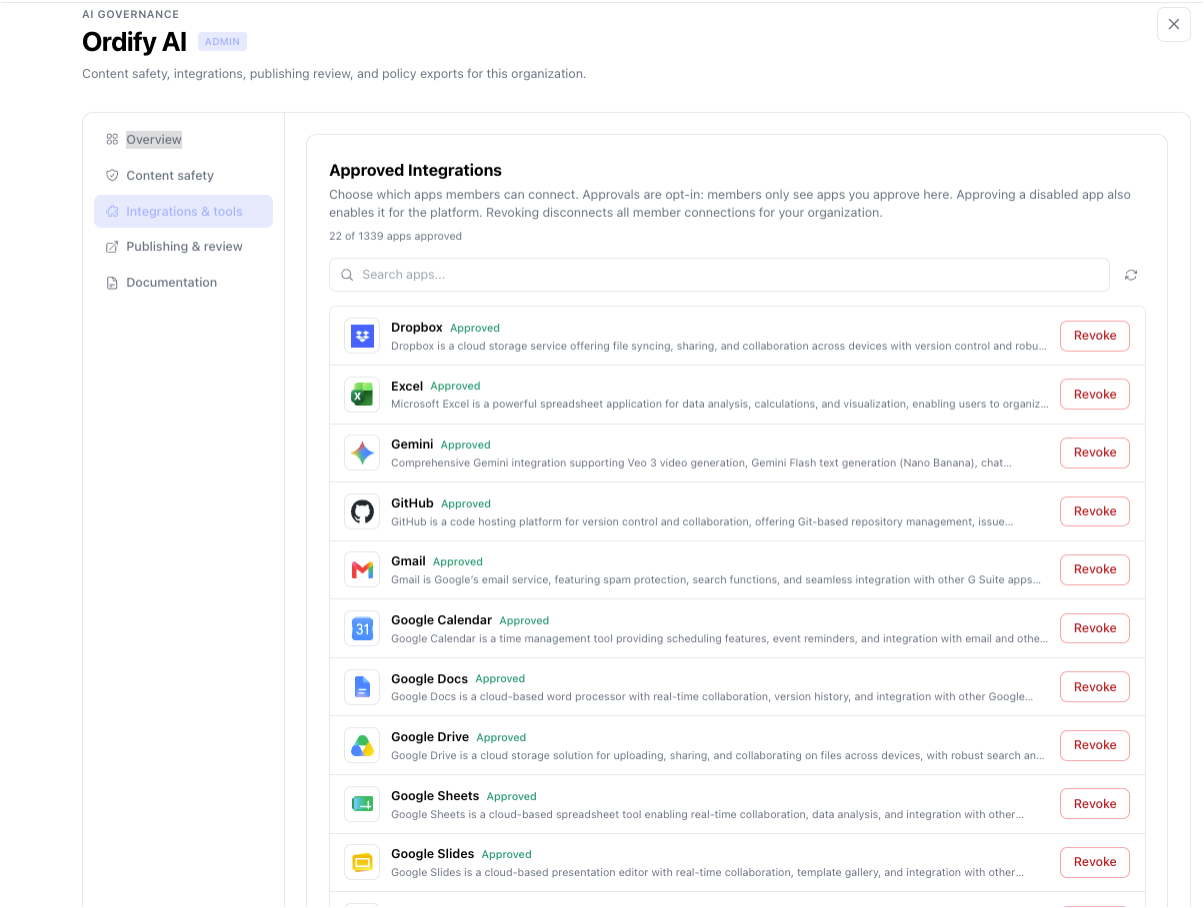
- Open Integrations & tools.
- Search for an app and approve it.
- Use Revoke to remove an app. That also disconnects member connections to it for your organization.
Members can request an app that is not approved yet. You resolve those requests here or from the notification bell. Full approve, request, and revoke steps are on Organization app access.
Any agent or job that uses tools from a revoked app will fail the next time it tries to use them. Check what depends on the app before you revoke it.
Publishing & review
Agents, jobs, and blueprints shared with your organization need admin review before other members can use them.
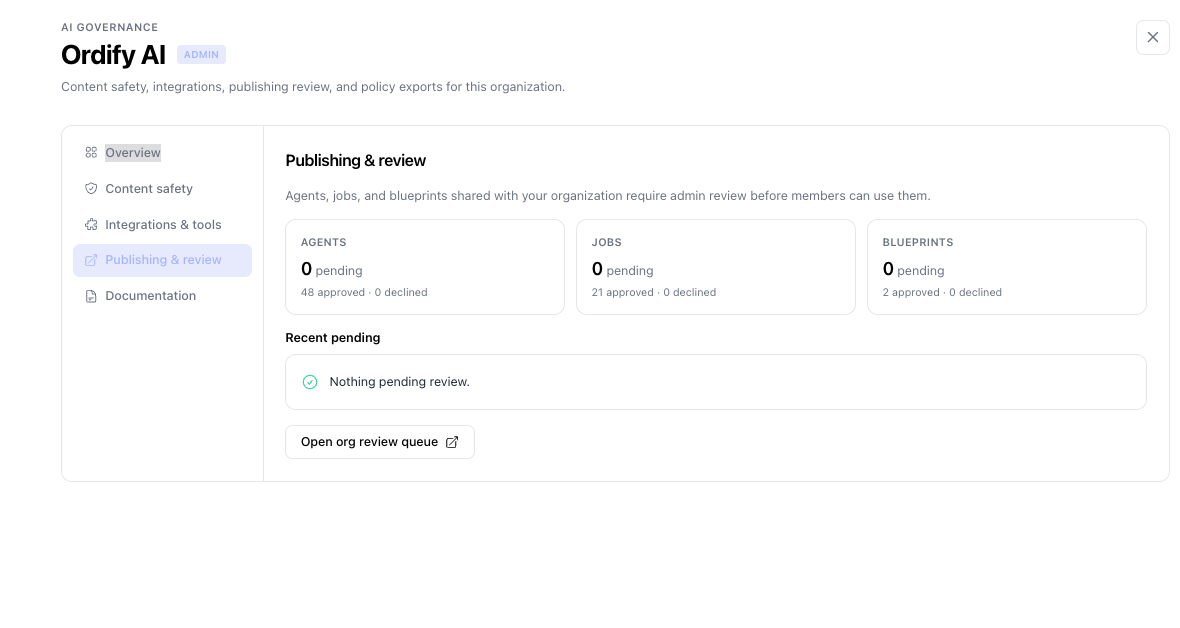
- Open Publishing & review.
- Check pending, approved, and declined counts for Agents, Jobs, and Blueprints.
- Open Recent pending for the latest items, or click Open org review queue.
- In Library → Org Review, approve or decline each submission.
Documentation
Generate an AI Governance Policy & Posture Report for the organization. Part I is an editable policy template. Part II attests your current Ordify settings and metrics.
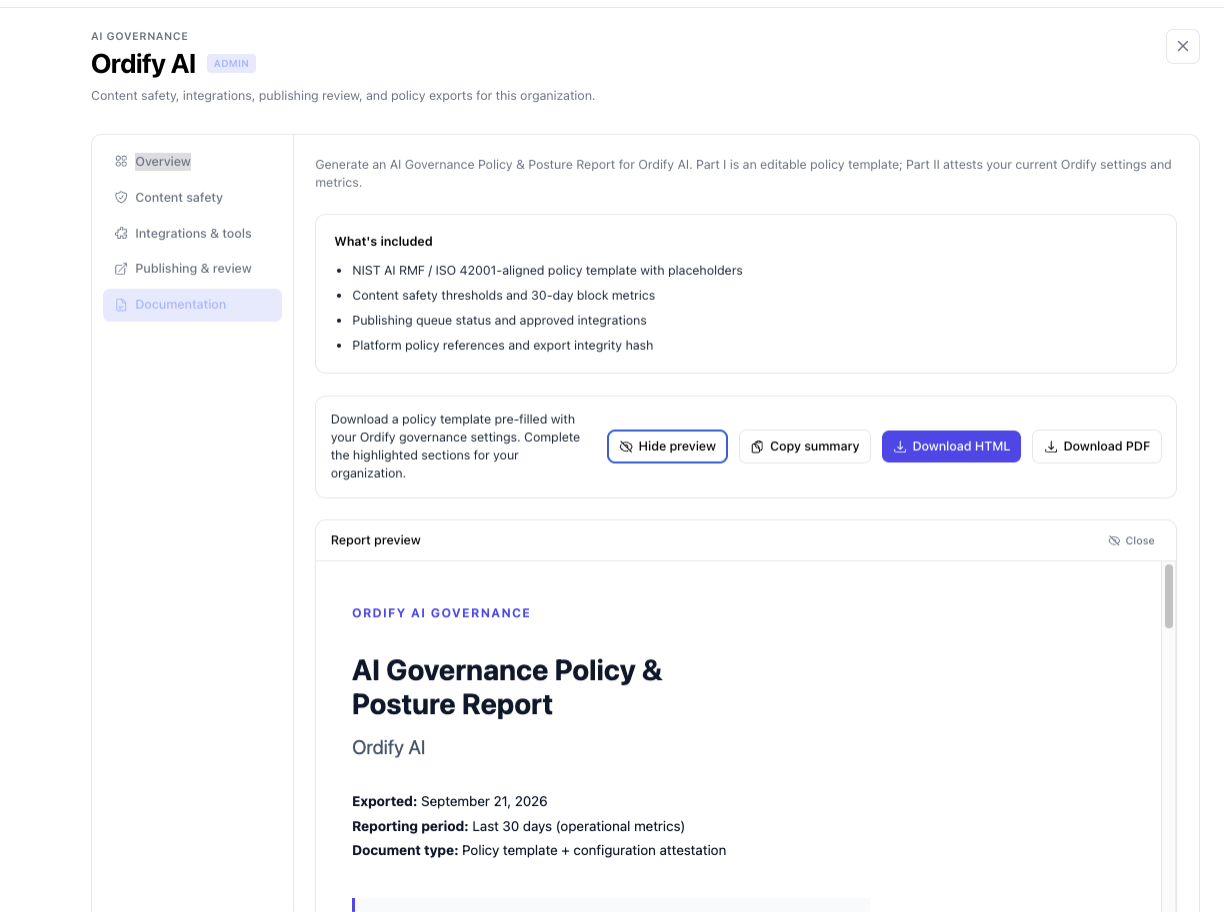
The report includes:
- A NIST AI RMF / ISO 42001-aligned policy template with placeholders
- Content safety thresholds and 30-day block metrics
- Publishing queue status and approved integrations
- Platform policy references and an export integrity hash
- Open Documentation.
- Click Preview to read the report in the page.
- Copy summary for a short text version.
- Download HTML or Download PDF when you are ready to share it.
Complete the highlighted sections in the downloaded file for your organization. The numbers and settings are filled in from Ordify; the policy language still needs your review.
Example
Scenario: An operations lead needs one place to lock down which apps agents can use, keep chat output within company standards, and approve the first shared agents before the rest of the company uses them.
- Open AI Governance and confirm Overview looks quiet — no pending reviews, and the safety preset you expect.
- On Integrations & tools, approve Gmail, Google Drive, and Slack. Leave everything else unapproved.
- On Content safety, keep Standard, or switch to Strict if the team handles sensitive customer work.
- A teammate shares an agent with the organization. It appears under Publishing & review. You open Org Review, check the tools and instructions, and approve it.
- On Documentation, download the PDF and send it to security with the highlighted sections filled in.
Use cases
- IT and security: Keep agents on an approved app list instead of asking every team to self-report what they connected.
- Compliance: Set content safety once for the organization, then export the current posture when someone asks for a policy.
- Operations: Review shared agents, jobs, and blueprints before they become the default way the company works.
- Leadership: Use the 30-day overview to see blocks and pending reviews without opening each setting.
What's next
- Getting started — invite members and change roles from Organization
- Organization app access — approve, request, and revoke apps in more detail
- Connect an app — what members do after you approve an app
- Library — where Org Review lives alongside the rest of your agents and jobs