Web App
Embed Ordify AI agents in your website or application using the Ordify Web App embed. This production-ready React component provides a polished chat interface with zero configuration required.
Overview
The Web App embed is a React component that connects your custom Ordify agents to any website. It provides a responsive chat interface and requires no CSS imports or complex setup. Use it in a React app (npm) or on WordPress and other sites via a single script tag — no build step required.
Key features
- Zero configuration: Drop-in embed with no CSS imports or additional setup
- React or script-tag: Use from npm in a React app, or load via script tag on WordPress and static sites
- Multiple modes: Floating and embedded chat interfaces
- Professional UI: Polished, responsive chat interface
- Real-time AI: Direct integration with your Ordify agents
- TypeScript support: Full type safety and IntelliSense
- Customizable: Colors, themes, and styling options
- Context aware: Send hidden user context to AI for personalized responses
- Welcome screen: Display quick action questions before the session starts
API key vs publishable key
| Credential | Where to create | Use for |
|---|---|---|
Publishable key (pk_live_...) | Settings → Web App Integration | Browser embeds (recommended) |
| Secret API key | Settings → API | Server-side REST only — see API |
- Publishable keys are safe in browser code: restricted by allowed origins and rate limits (default 100 requests/minute per key).
- Secret API keys must not be shipped to browsers. The embed supports
apiKeyfor legacy setups but warns in client contexts; preferpublishableKey.
Prerequisites
- Publishable key (
pk_live_...) — recommended: Create one in Settings → Web App Integration. Each key is tied to one agent and restricted by allowed origins. - Agent ID: Copy from your key details or agent settings (shown when you create a publishable key).
- Allowed origins: Add your site origin(s), e.g.
https://example.com(and for local dev:http://localhost:3000). - Secret API key (optional, not recommended in browser): Available under Settings → API for server-side use only.
Getting started — publishable keys
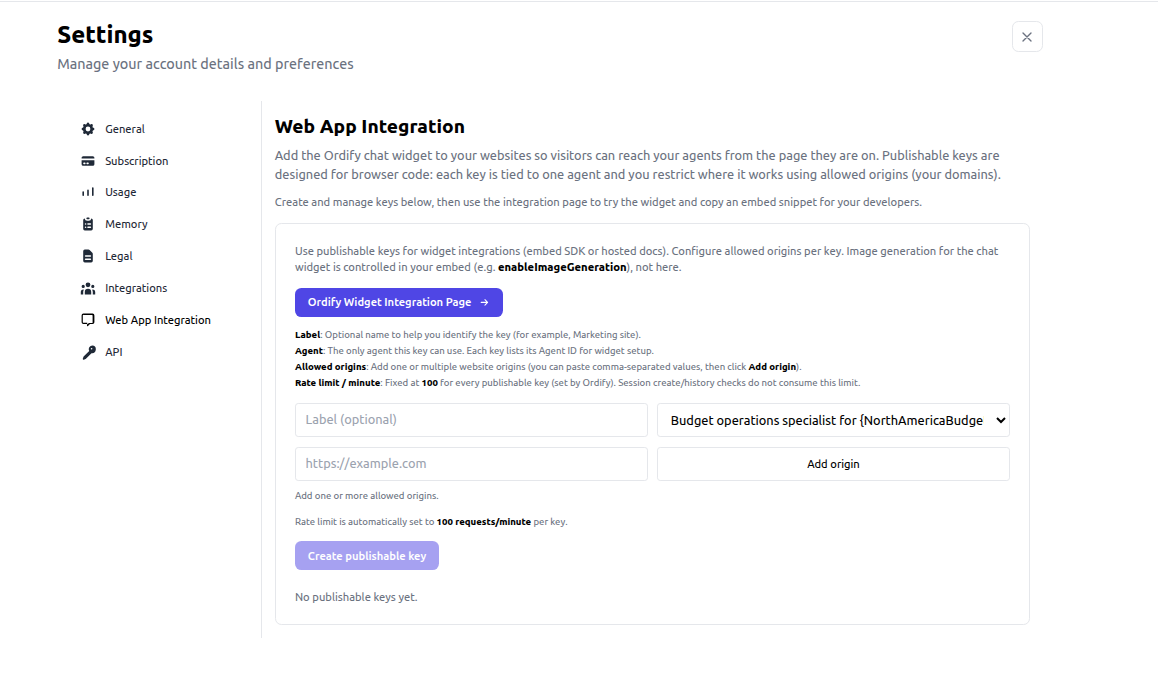
- Open Settings → Web App Integration.
- (Optional) Add a label so you can identify the key later.
- Select the agent this key should be allowed to use.
- Add one or more allowed origins and click Add origin for each one (for example,
https://example.comandhttp://localhost:3000for local testing). - Click Create publishable key, then copy the key (
pk_live_...) and Agent ID. - Open the Ordify Widget Integration Page to test the key with the selected agent and copy the generated embed snippet (React or script-tag).
Test before going live
Use the Widget Integration Page to validate your setup before adding the snippet to production:
- Paste your publishable key and confirm the selected agent matches your intended assistant.
- Send a few test prompts and verify responses are coming from the right agent behavior.
- Confirm your allowed origins include the environment you are testing from (local and production domains).
- Copy the generated embed snippet and place it in your site.
Authentication
Browser embed and Web App endpoints use a publishable key plus an Origin check:
- Header:
x-ordify-publishable-keywith yourpk_live_...value - Origin: The browser sends
Origin; it must match one of the key’s allowed origins - Rate limit: Keys are rate limited (default 100 requests/minute)
If the Origin is missing or not allowed, the API rejects the request even if the key is valid.
Quick start
Step 1: Install the library
npm install ordify-chat-widget
Step 2: Add to your React app
import { OrdifyChat } from 'ordify-chat-widget'

function App() {
  return (
    <OrdifyChat
      agentId="your-agent-id"
      publishableKey="pk_live_..."
      apiBaseUrl="https://r.ordify.ai"
      chatName="AI Assistant"
      buttonText="?"
      initialContext="user_id: demo_user, page: /home"
    />
  )
}
No CSS imports, no additional setup. All necessary styles are included automatically.
Chat modes
Floating chat
A floating button in the bottom-right corner. Perfect for sites that want chat support without taking up page space.
<OrdifyChat
  agentId="your-agent-id"
  publishableKey="pk_live_..."
  apiBaseUrl="https://r.ordify.ai"
  mode="floating"
  position="bottom-right"
  buttonText="AI Chat"
/>
Embedded chat
A full-page chat interface embedded directly in your content. Ideal for dedicated support pages.
<OrdifyChat
  agentId="your-agent-id"
  publishableKey="pk_live_..."
  apiBaseUrl="https://r.ordify.ai"
  mode="embedded"
  height="500px"
  chatName="Support Assistant"
/>
Configuration options
Required props
- agentId (string): Your Ordify agent ID
- One credential:
publishableKey(recommended) orapiKey(supported)
Optional props
| Option | Type | Default | Description |
|---|---|---|---|
publishableKey | string | — | Recommended browser credential (pk_live_...) |
apiKey | string | — | Supported browser credential (api-key header); not recommended in browser |
apiBaseUrl | string | "https://r.ordify.ai" | API endpoint URL |
chatName | string | "Chat Assistant" | Title text in chat header |
buttonText | string | "AI Chat" | Text on floating button |
mode | string | "floating" | "floating" or "embedded" |
position | string | "bottom-right" | Floating button position |
primaryColor | string | — | Custom primary color for welcome screen |
agentImage | string | — | URL to agent avatar image |
onSessionCreated | function | — | Callback when a new session is created |
initialMessage | string | — | Message to auto-send when the embed loads |
initialContext | string | — | Hidden context sent to AI (user ID, page info) |
quickQuestions | string[] | — | Quick action buttons in welcome screen |
welcomeMessage | string | "Hi there 👋 How can we help?" | Greeting shown in welcome screen |
welcomeImage | string | — | Image displayed in welcome screen |
theme | string | "auto" | "light", "dark", or "auto" |
enableAttachments | boolean | false | Enables paperclip + drag/drop attachments |
maxAttachmentSizeMB | number | 10 | Client-side max file size |
maxAttachments | number | 3 | Max attachments per message |
allowedAttachmentTypes | string[] | Embed defaults | Optional client MIME allow-list override |
Credential guidance
- Both
publishableKeyandapiKeywork for Web App chat, sessions, and history. - Use
publishableKeyfor browser embeds (pk_live_...) — it’s scoped by allowed origins and is safe to ship in client-side code. - Prefer keeping account-level secret
apiKeyon the server; see API. - If both are provided, the embed uses
publishableKeyand ignoresapiKey.
WordPress integration
Add the Web App embed to WordPress or any site without React by loading the standalone script from a CDN.
Option 1: Theme (e.g. Twenty Twenty-Five)
Add to your theme's functions.php:
if ( ! function_exists( 'your_theme_ordify_web_app' ) ) :
  function your_theme_ordify_web_app() {
    if ( is_admin() ) { return; }
    $config = array(
      'agentId'        => 'your-agent-id',
      'publishableKey' => 'pk_live_...',
      'apiBaseUrl'     => 'https://r.ordify.ai',
      'mode'           => 'floating',
      'position'       => 'bottom-right',
      'buttonText'     => 'Chat',
      'chatName'       => 'Assistant',
      'primaryColor'   => '#f3b43b',
      'welcomeMessage' => 'Hi, how can we help?',
      'quickQuestions' => array(
        'Where is your location?',
        'How do I schedule an appointment?',
      ),
    );
    $script_url = 'https://unpkg.com/ordify-chat-widget/dist/ordify-chat-widget.standalone.js';
    ?>
    <script src="<?php echo esc_url( $script_url ); ?>"></script>
    <script>OrdifyChatWidget.mount(null, <?php echo wp_json_encode( $config ); ?>);</script>
    <?php
  }
endif;
add_action( 'wp_footer', 'your_theme_ordify_web_app', 99 );
Use a pinned version in the script URL (e.g. @1.0.48) so updates are intentional. publishableKey requires version 1.0.45 or later. Check npm for the latest version.
Option 2: Plugin (Insert Headers and Footers, WPCode, etc.)
<script src="https://unpkg.com/ordify-chat-widget@1.0.48/dist/ordify-chat-widget.standalone.js"></script>
<script>
  OrdifyChatWidget.mount(null, {
    agentId: "your-agent-id",
    publishableKey: "pk_live_...",
    apiBaseUrl: "https://r.ordify.ai",
    mode: "floating",
    position: "bottom-right",
    buttonText: "Chat",
    chatName: "Assistant",
    theme: "light",
    primaryColor: "#f3b43b",
    welcomeMessage: "Hi, how can we help?",
    quickQuestions: [
      "Do you take Insurance?",
      "How much do hearing aids cost?",
      "Where is your location?",
      "How do I schedule an appointment?"
    ]
  });
</script>
Option 3: Data attributes (one script tag)
<script
  src="https://unpkg.com/ordify-chat-widget@1.0.48/dist/ordify-chat-widget.standalone.js"
  data-ordify-widget
  data-ordify-agent-id="your-agent-id"
  data-ordify-publishable-key="pk_live_..."
  data-ordify-api-base-url="https://r.ordify.ai"
  data-ordify-theme="light"
  data-ordify-button-text="Chat"
  data-ordify-chat-name="Assistant"
  data-ordify-quick-questions='["Do you take Insurance?","How much do hearing aids cost?"]'
></script>
Attachments
The Web App embed supports file attachments out of the box.
- Enable with
enableAttachments={true}. - Requires a
publishableKey— attachment uploads are not supported withapiKey. - Tune limits via
maxAttachmentSizeMB,maxAttachments, and (optionally)allowedAttachmentTypes. - Uploads go through
POST /widget/attachments, then are sent in chat asattachments.
<OrdifyChat
  agentId="your-agent-id"
  publishableKey="pk_live_..."
  apiBaseUrl="https://r.ordify.ai"
  mode="floating"
  enableAttachments
  maxAttachmentSizeMB={10}
  maxAttachments={3}
  allowedAttachmentTypes={['application/pdf', 'image/png', 'image/jpeg']}
/>
Troubleshooting
- 401 Unauthorized: missing/invalid publishable key (or invalid API key).
- 403 Forbidden: missing
Originheader, origin not inallowed_origins, or the key isn’t authorized for that agent. - 413 Payload Too Large: attachment exceeds
maxAttachmentSizeMB(or the server’s max upload size). - 429 Too Many Requests: publishable key rate limit reached (try again shortly).
Session management
Track session IDs for analytics:
import { useState } from 'react'
import { OrdifyChat } from 'ordify-chat-widget'

export function ChatWithSessionTracking() {
  const [sessionId, setSessionId] = useState<string | null>(null)

  return (
    <OrdifyChat
      agentId="your-agent-id"
      publishableKey="pk_live_..."
      apiBaseUrl="https://r.ordify.ai"
      mode="floating"
      onSessionCreated={(id) => {
        setSessionId(id)
        console.log('New session created:', id)
      }}
    />
  )
}
Hidden context
Send user information to your AI agent without displaying it to users:
<OrdifyChat
  agentId="your-agent-id"
  publishableKey="pk_live_..."
  apiBaseUrl="https://r.ordify.ai"
  mode="floating"
  initialContext={`user_id: ${user?.id}, email: ${user?.email}, page: ${router.pathname}`}
/>
Use this to pass user ID, current page URL, subscription tier, or any analytics data. Users only see the normal chat interface — the context is never displayed.
Resources
- Live demo & embed snippets: https://app.ordify.ai/widget-demo
- GitHub repository: https://github.com/Ordify-Ai/chat-widget
- Server-side REST API: API documentation
Next steps
- Configure keys in Settings → Web App Integration
- For backend automation, use API keys and REST instead of publishable keys