Triggers
Automation in Ordify runs in two modes: scheduling (time-based) and triggers (event-based). Triggers run your jobs automatically when specific events occur in your connected apps — so instead of waiting for a scheduled time, your workflows react to what's happening right now.
Once your apps are connected, triggers turn your automation into a real-time, reactive system that works the moment something important occurs.
When to use triggers
- New email arrives — process incoming emails, extract information, or route messages automatically
- Form submissions — instantly handle responses from Google Forms, contact forms, or surveys
- CRM updates — react to new leads, deal changes, or customer updates
- File uploads — process documents when they're uploaded to Google Drive or OneDrive
- Calendar events — trigger workflows when meetings are scheduled or reminders fire
- Payment notifications — handle payment confirmations, subscriptions, or transaction updates
How to set up a trigger
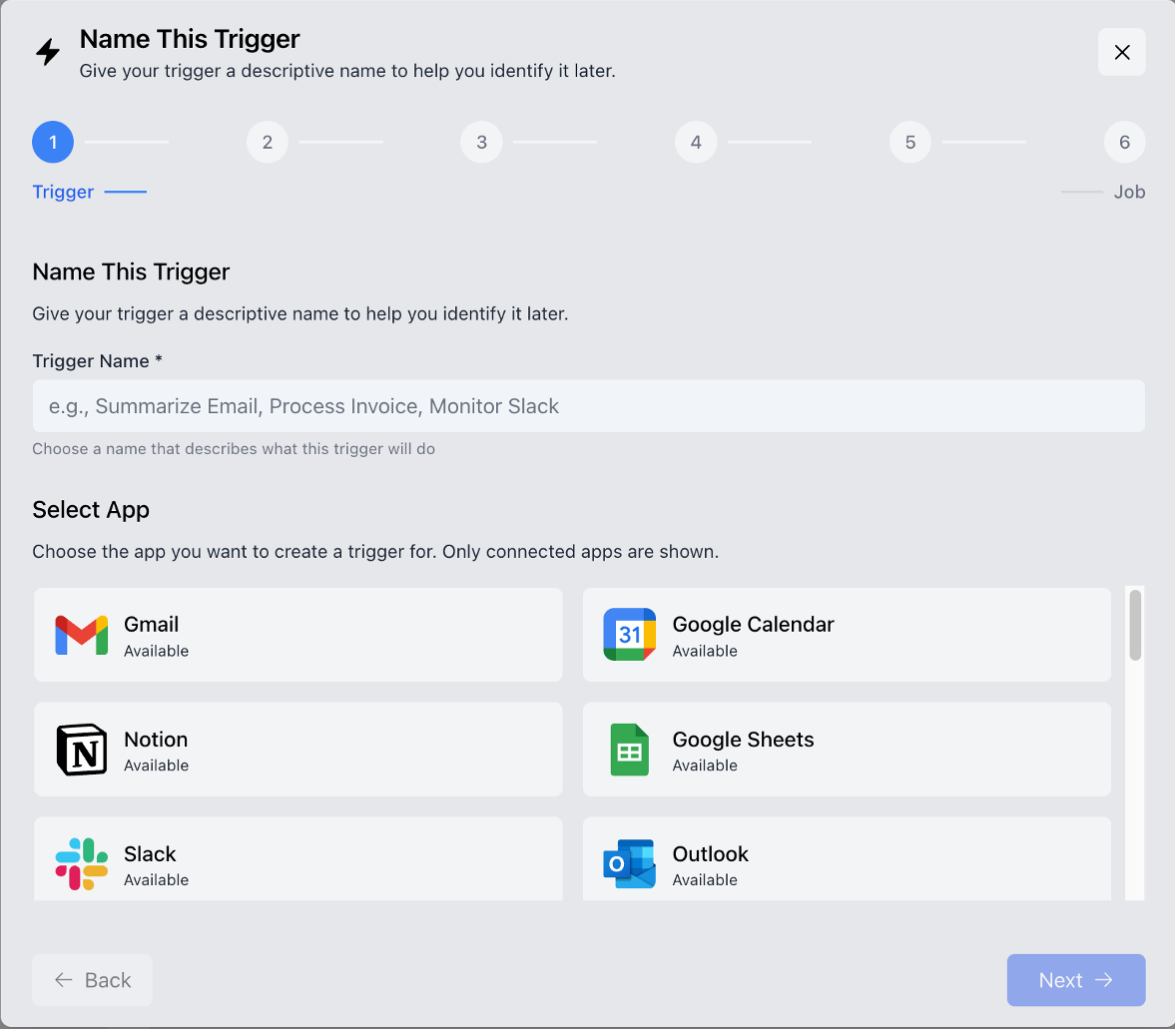
- Click on Automation → Trigger Manager
- Click Create Trigger
- Name your trigger and select which app to use
- Select which event will trigger the action
- Configure the event details
- Select which job to run when the trigger fires
- Click Create Trigger to finalize
Adding a trigger from the Job Builder
Triggers can also be set up while building the job. Open the Triggers tab in the Job Builder side panel, add the trigger there, and it is saved together with the job.
If your job description implies an event — "when a new lead arrives in HubSpot," "whenever someone emails support@" — the builder proposes a matching trigger alongside the generated pipeline, including the app and event where it can determine them. Review and complete the configuration before saving.
Knowing when a triggered run finishes
Triggered jobs run on their own, so results arrive through notifications. You get a notification when a run completes or fails, and it records that a trigger started the run.
What's next
- Scheduling — run jobs on a time-based schedule instead of reacting to events
- Create a job — add triggers while building the job
- Notifications — see when triggered runs complete or fail
- Connect an app — connect the apps your triggers need to monitor