RAG setup
RAG (Retrieval Augmented Generation) is the mechanism that gives your agents access to your own documents and knowledge. Instead of relying solely on the AI's training data, RAG allows agents to access up-to-date information from your documents, reference company policies and procedures, and answer questions based on your proprietary content.
How to connect documents to an agent
Step 1: Upload documents to Drive
- Navigate to Drive
- Click "+ Upload to My Folders" to upload files from your computer, or use "Add from Google Drive"
- Organize documents into folders — for example, "HR Policies," "Product Specs," or "Brand Guidelines"
See Drive for full document management options.
Step 2: Enable RAG sync on a folder (recommended)
Instead of selecting individual files, sync entire folders so that any new documents added to the folder are automatically available to your agents.
- Open the folder in Drive
- Click the folder's Info icon to open the Folder Info modal
- Toggle RAG Sync on
Sync status indicators:
- Syncing: A pulsing animation indicates files are being processed
- Synced: A chip icon shows the folder is live in RAG
- Failed: An alert appears if any synchronization issues occur
Document indexing status
Individual documents show where they are in the indexing pipeline:
- Queued — waiting to be processed
- Processing — being indexed now
- Ready — indexed and searchable by your agents
Large documents and bulk uploads are queued and processed in the background, so you can keep working while indexing continues. Status updates live — no need to refresh.
A document cannot be attached to or detached from RAG while it is queued or processing. Wait for indexing to finish, then make the change.
A document is only searchable once it reaches Ready. If an agent cannot find something you just uploaded, check that its indexing has completed.
Step 3: Assign knowledge to an agent
- Open Agent Builder or edit an existing agent
- Navigate to the Knowledge tab
- Select the folders or individual documents you want the agent to access
- Click Save or Create Agent
Folder-based knowledge: Assign entire synced folders to an agent. As you add new content to the folder, the connected agent automatically gains access to the new information without manual reconfiguration.
Granular control: Mix specific files with folders to fine-tune exactly what information each agent can access.
Using RAG in chat
Chat with a specific agent
Use @agent_name in any conversation to interact with an agent that has been configured with specialized knowledge. The agent will draw on its assigned documents when answering.
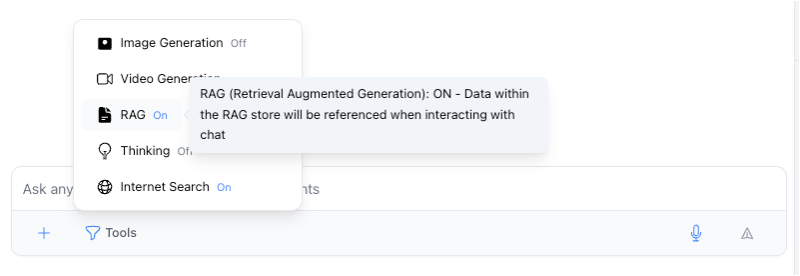
Chat with your entire RAG store
Enable the RAG tool under the Tools menu to chat with your entire personal and organizational knowledge base at once — without needing to switch between specific agents.
Best practices
- Organize by topic: Group related documents into folders (e.g., "HR Policies," "Project Specs") and sync the whole folder.
- Keep it fresh: Use Folder Sync to ensure agents always have the latest document versions as you update files.
- Selective knowledge: Create specialized agents with access to specific folders for more relevant and accurate responses (e.g., a "Legal Bot" with access to a "Contracts" folder).
- Avoid over-loading: An agent that knows everything may be less precise than one configured for a specific domain. Match the knowledge to the agent's purpose.