Word and documents
Enable Word on Ordify Productivity in Edit Agent → Integrations. Describe the document you need in chat and get a ready-to-use .docx file.
Why use Word and documents
- Ready to share: Get a formatted Word file, not a long chat reply you have to copy out.
- Edit in conversation: Follow-up requests update the same document instead of wiping it.
- From your notes: Attach notes or an existing
.docx, or point the agent at a file in Drive.
What you can do
- Create a new Word document from a description or attached notes
- Edit an existing
.docxfrom chat, an attachment, or Drive - Follow-up edits ("add a section", "expand that paragraph") update the file instead of wiping it
- Headings, paragraphs, tables, bold, italic, and links
How it works
- Enable Word on Ordify Productivity.
- Describe the document in chat, or attach notes you want turned into a
.docx. - The agent returns a Word file.
- Follow-ups such as "add a Risks section" update that same file.
Getting started
- Find the agent in your Library or sidebar and click Edit.
- Open the Integrations tab.
- Under Apps, tick Ordify Productivity. It is marked Built-in — there is no connect step.
- On the right, tick Word. Leave tools this agent does not need off.
- Click Save Changes.
- Open chat and describe the document you need.
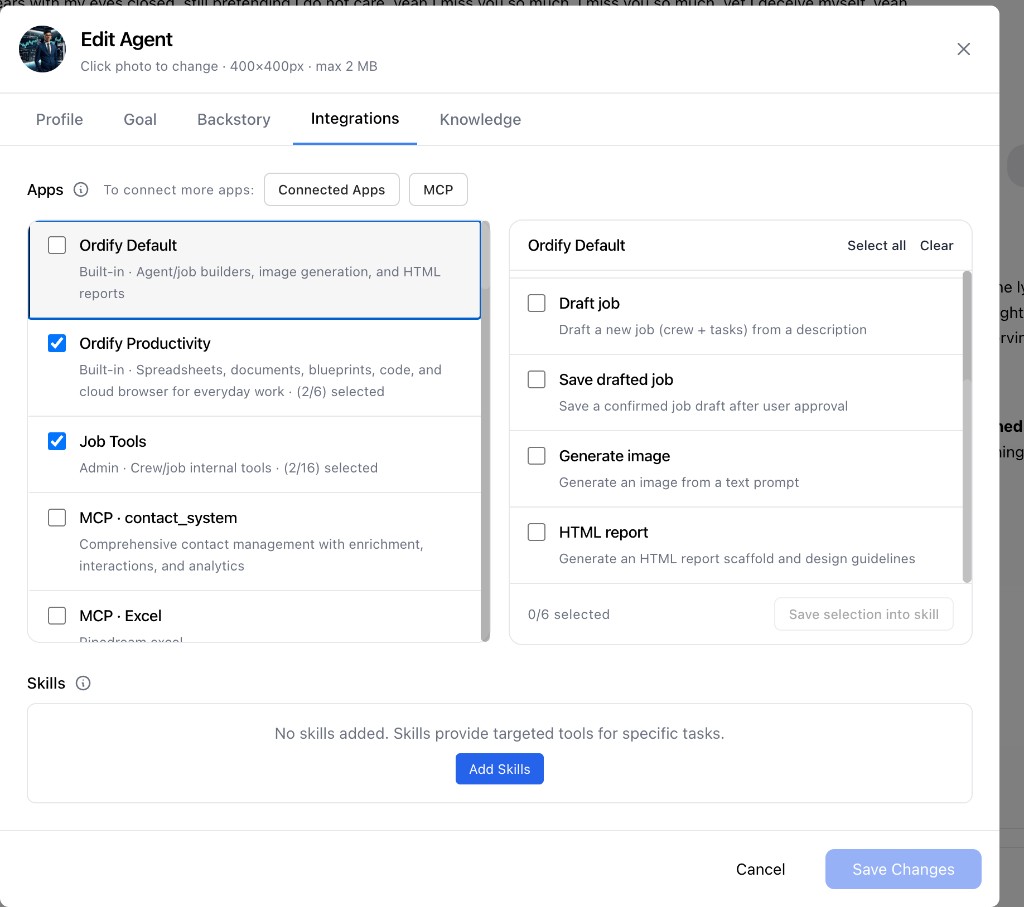
Ticking Word is enough. You do not also need to tick Code.
Files land in the Drive and can be previewed in chat.
Example
Ask in chat after Word is enabled:
- "Write a one-page leadership summary of this week's capacity numbers as a Word doc."
- "Add a Risks section to the brief you just created."
- "Turn these meeting notes into a formatted Word document with headings and a table."
Use cases
- Operations: Turn a weekly capacity update into a one-page brief for leadership.
- Legal and admin: Draft a letter or notice from notes, then add a section in a follow-up.
- Leadership: Expand meeting notes into a formatted summary with headings and a table.
What's next
- Excel and spreadsheets — create and edit
.xlsxworkbooks in chat - Previewing files — open a document beside the conversation
- HTML reports — create a standalone HTML report or dashboard
- Drive — store and reopen files the agent creates
- Create and edit files — Search, Code, and the file-tools overview