Triggers
Triggers run your jobs automatically when specific events occur in your connected apps. Instead of running on a schedule, triggers react to what's happening in real-time—like a smart assistant that's always watching for the right moment to act.
When to Use Triggers:
- New Email Arrives - Process incoming emails, extract information, or route messages automatically
- Form Submissions - Instantly handle responses from Google Forms, contact forms, or surveys
- CRM Updates - React to new leads, deal changes, or customer updates in your CRM
- File Uploads - Process documents when they're uploaded to cloud storage like Google Drive or OneDrive
- Calendar Events - Trigger workflows when meetings are scheduled or reminders fire
- Payment Notifications - Handle payment confirmations, subscriptions, or transaction updates
Triggers are ideal when you need to respond immediately to events as they happen, rather than waiting for a scheduled time. They turn your automation into a real-time, reactive system that works the moment something important occurs.
How to set up a trigger
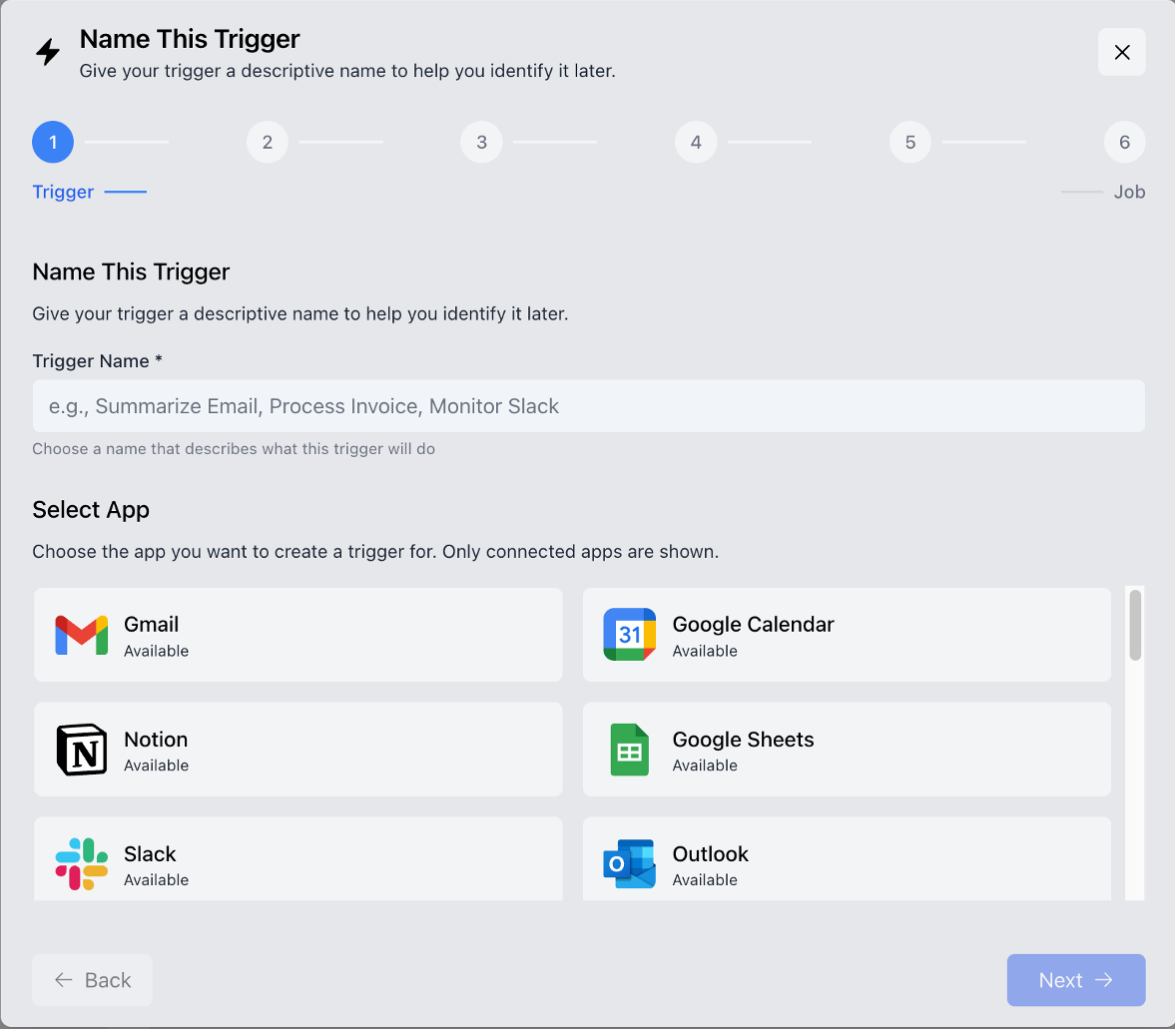
- Click on Automation -> Trigger Manager
- Click on Create Trigger
- Name your trigger and select which app to use
- Select which event will trigger the action
- Configure the event
- Select which job to run when the trigger event occurs
- Click on Create Trigger to finalize
See more details and a quick demo video on the guide below.